As World of Warcraft (WoW)’s latest expansion, Dragonflight has a lot to love, from the brand-new area of Dragon Isles to all the Dragon Aspects drama and an intricate story, Dragonriding, and much more. There are, however, also several issues, from the servers being a bit unstable to performance drops.
If you are suffering from low frames-per-second (FPS) or lag in WoW Dragonflight, then you might want to reset your User Interface (UI). This guide explains exactly how you can reset your WoW UI to squash those low FPS issues with ease.
How To Reset WoW Dragonflight UI
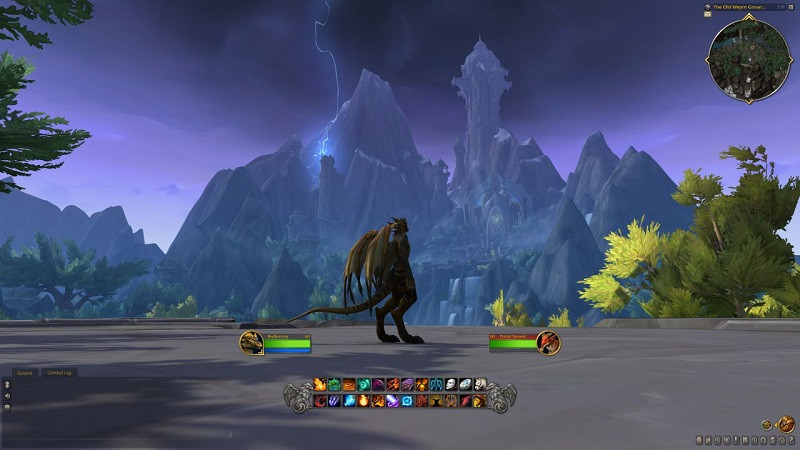
It has become standard practice over the years to reset your WoW UI once a new expansion launches. With WoW Dragonflight, new accessibility options and UI elements have arrived, so you will want a fresh start.
First up, it is essential to note that before you start with the steps to reset your WoW UI below, you will need to temporarily uninstall any addon management software you might be using.
This is due to the simple fact that many addon managers re-sync the data that you are trying to reset with these steps. Resetting your UI in WoW can resolve various display and interface issues, including low FPS and performance that players are struggling with at the launch of WoW Dragonflight.
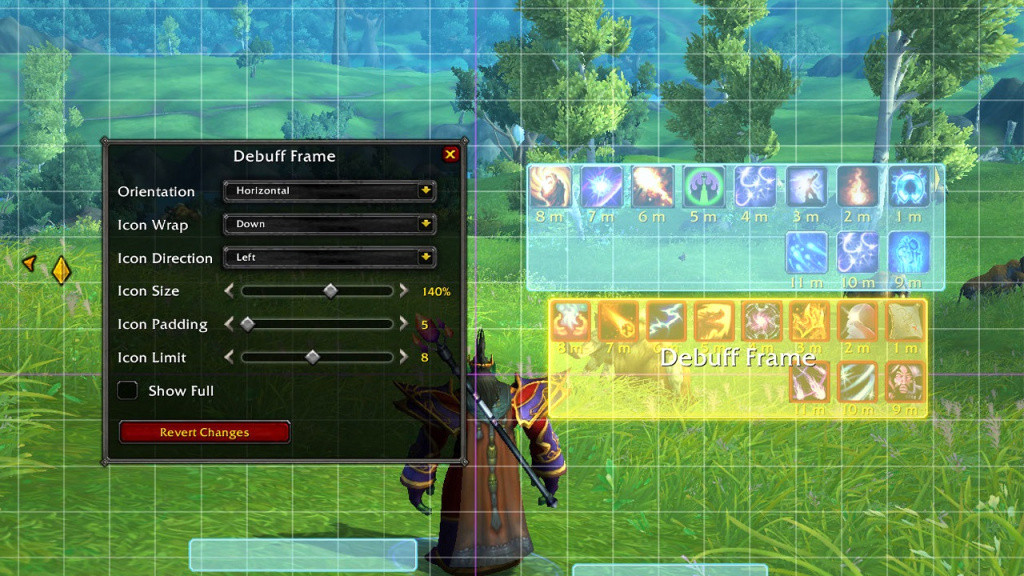
Below, you can find all the steps required to reset your WoW user interface.
- Completely exit World of Warcraft.
- Uninstall any addon managers to make sure they don’t re-add your removed addons.
- In the Blizzard Battle.net desktop application, click Options and select Show in Explorer (Windows) or Reveal in Finder (Mac).
- Open the World of Warcraft® folder.
- Open the folder for the game version you’re troubleshooting (_retail_, _classic_era_, or _classic_)
- Rename the Cache, Interface, and WTF folders to CacheOld, InterfaceOld, and WTFOld.
- Re-launch World of Warcraft so the changes can take effect.
So there you have it, all the steps you will need to follow to reset your World of Warcraft UI to enjoy Dragonflight. Please note that these steps should be taken at your own risk. These are official steps as outlined by Blizzard’s support staff.